PDF Edit Craft Files never leave your device

How to repair a damaged PDF

A PDF that says “damaged”, opens blank or stops at an error can often be saved. Open it in the editor: it checks the file, repairs it automatically and tells you what it recovered.
Do it now in the free PDF editorOpens in your browser. No sign-up, no watermark — your PDF is never uploaded.
Open the PDF editor

Repair a PDF in three steps

  1. Open the PDF editor and choose the damaged PDF.
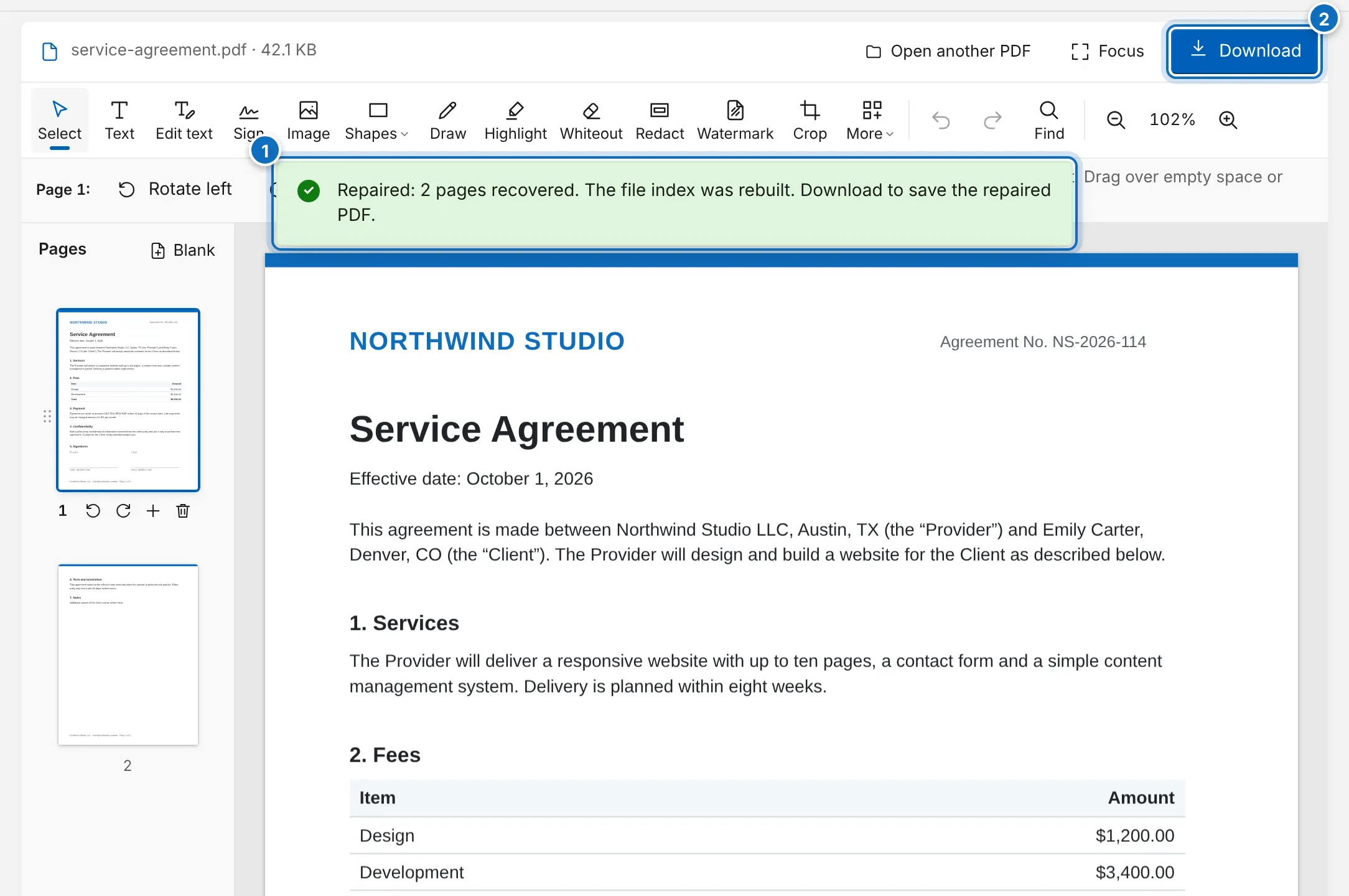
  2. Wait a moment while it is repaired. A message tells you how many pages were recovered and what was fixed.
  3. Check the pages, then click Download to save the repaired PDF.

See how it works

A cut-off PDF opened in the editor with the message that it was repaired and how many pages were recovered
  1. Open the damaged PDF — it is repaired automatically
  2. Click Download to save the repaired copy

What the repair does

  • Reads every object in the file one by one, so it does not depend on the damaged index at the end of the file.
  • Rebuilds the page list from the pages it finds, keeping their size, rotation and resources.
  • Removes references to objects that are gone, so other apps can open the result too.
  • Checks every page of the repaired copy before it opens.

Keep the original file until you have checked the repaired copy. Saving it under a new name, such as “contract-repaired.pdf”, which is the default, makes that easy.

Frequently asked questions

What kinds of damage can be repaired?

The most common ones: a missing or broken cross-reference table and trailer (often after a file was edited by another app), a download or e-mail attachment that was cut off before the end, and a broken page list. The repaired copy is rebuilt from every object that can still be read.

Will I get all my pages back?

Everything that is still in the file comes back. If the end of the file is missing, the content stored there, such as an image or a font, may be lost; the message lists pages that had no readable content. As a last resort, pages that can only be displayed are rebuilt as images.

Can I edit the repaired PDF?

Yes. It opens in the editor like any other PDF, so you can add text, sign, fill in forms, reorder pages or crop them before you download.

What if the file cannot be repaired?

If no readable PDF objects are left, for example when the file is empty or is not a PDF at all, the editor tells you. Try downloading the file again or ask the sender for a new copy.

Is my PDF uploaded to a server?

No. The repair runs in your browser, so confidential documents never leave your device.

Ready to try it?Drop your PDF into the editor and download the result in seconds.
Open the PDF editor

More guides

Edit existing PDF textClick a line that is already in the PDF and retype it in a matching font.Add text to PDFType anywhere on a page in 26 fonts, any size and color.Sign a PDFDraw, type or upload your signature and place it on the page.Fill out a PDF formFill fields, tick checkboxes and choose options — even on non-fillable forms.Highlight text in a PDFHighlights that snap to the words and lines under them.Draw and add shapes to a PDFFreehand drawing, rectangles, ellipses, lines and arrows.Add an image to a PDFInsert a JPG, PNG, HEIC or WebP image, logo or stamp.Add a watermark to a PDFStamp text or a logo on every page, or only the pages you choose.Redact a PDF permanentlyBlack out confidential text so it is removed from the file for good.Search for text in a PDFCtrl+F across the whole document, then highlight or redact every match.Password protect a PDFLock a PDF with a password and AES-256 encryption, or restrict printing and copying.Unlock a PDFRemove the password and printing, copying or editing restrictions from a PDF.White out a PDFCover content with a white box and type over it.Reorder, rotate and delete PDF pagesReorder, rotate and delete pages; insert blank pages, other PDFs or images.Crop PDF pagesTrim white margins or keep just part of a page, on one page or all of them.Split a PDF into several filesCut a PDF at the pages you choose, every N pages or at each bookmark.Extract pages from a PDFPick pages by clicking them and save them as a new PDF.Merge PDF filesCombine PDFs and images into one file, in any order you like.Keyboard shortcuts and tipsUndo, copy and paste, select all, snap guides, layers and zoom.Compress a PDFMake a PDF smaller for email and upload limits while text stays sharp.Convert PDF to JPG or PNGSave PDF pages as high-resolution JPG or PNG images.Convert a text file to PDFTurn a .txt file into a clean PDF with your page size, font and margins.